As a system administrator, you are probably dealing with a lot of services every day.
On Linux, services are used for many different purposes.
They may be used in order to start a SSH server on your machine or they can perform some operations on a specific hour or day.
Whether you are using a Debian based distribution or a RedHat one, querying services is very similar.
However, given the distribution you are using, and more specifically
the initialization system (init or systemd), you may have to use
different commands.
In this tutorial, you will learn how you can, given your system manager, list all services on your Linux machine.
However, it has not always been the case : in the past, most distributions used the SysVinit system manager.
As a consequence, there are really two ways of managing your services on a Linux system.
Before learning the commands to list services, you have to know the system manager that you are currently using.
To determine your current system manager, the easiest way is
to use the “pstree” command and to check the first process ever run on
your system.
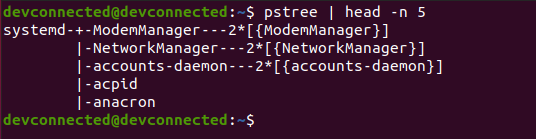
$ pstree | head -n 5
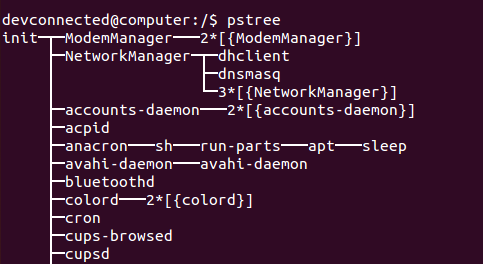
If you see “systemd“, it obviously means that you are currently using systemd. However, if you see “init“, it means that you are using SysVinit.
On Ubuntu 14.04, that is still using the old init system, your “pstree” may look like this.
List Services using systemctl
The easiest way to list services on Linux, when you are on a
systemd system, is to use the “systemctl” command followed by
“list-units”. You can specify the “–type=service” option in order to
restrict the results to services only.
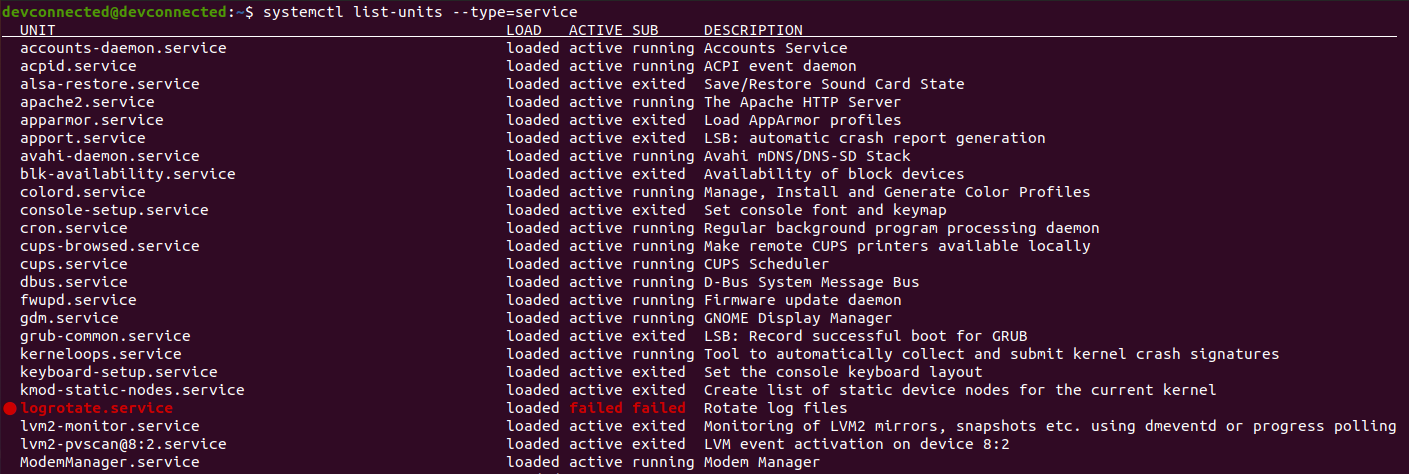
$ systemctl list-units --type=service
By default, this command will show you only the services that are
active or the services that have failed on your system. In the
screenshot above, most of the services are active but the logrotate one
(highlighted in red) is marked as failed.
Awesome, you learnt how you can easily list your services on a Linux server.
However, as you may have noticed, you did not have access to all services : what about inactive services? What about services that were not loaded by systemd on boot?
List All Services on Linux using list-units
In order to list all services, meaning active and inactive,
you have to use the “systemctl list-units” command followed by the
“–all” option.
Similarly, you can limit the results to services only by using the type filter.
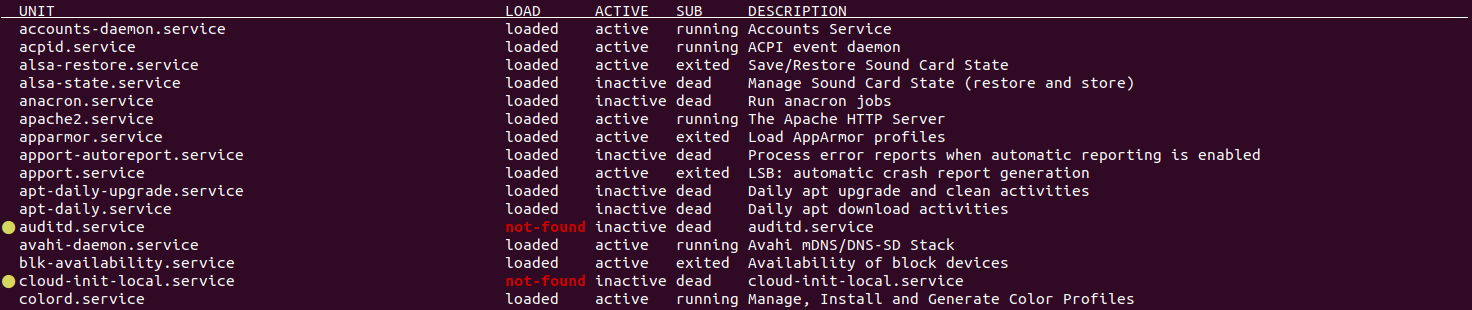
$ systemctl list-units --type=service --all
As you can see, inactives services also listed which might be
convenient if you just wrote your service and looking after it in the
list.
In this case, only loaded services are listed. On boot, systemd loads
unit files and it may choose not to load a specific service if it finds
that it won’t be used by the system.
As a consequence, there is a real difference between “loaded” and “installed” services. “Installed” services mean that unit files can be found in the corresponding paths.
List Services By State
In some cases, you may only be interested in services that
have failed. For that, you can specify the state that you are looking
for as an option of the systemctl command.
Where “state” can be one of the following values : active, inactive, activating, deactivating, failed, not-found or dead.
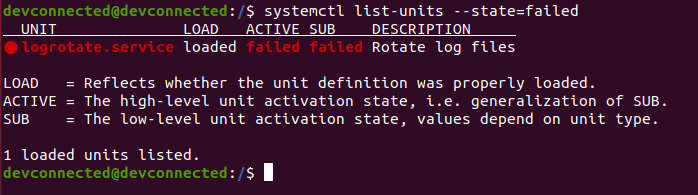
For example, if we are only interested in “failed” services, we are going to run the following command
$ systemctl list-units --state=failed
List All Service Files using list-unit-files
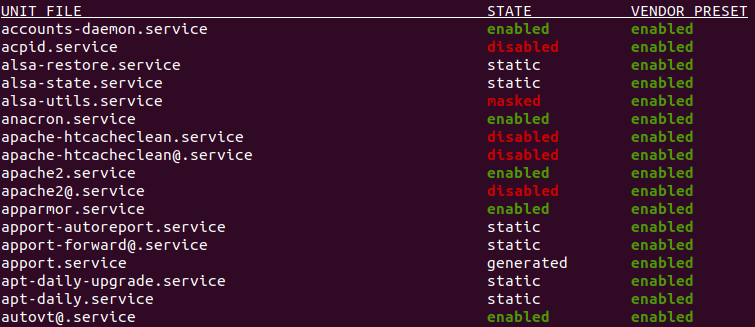
Finally, if you are interested in “loaded“, “installed“, “disabled” as well as “enabled” service files, there is a another command that might be pretty handy.
In order to list all service files available, you have to use
the “systemctl” command followed by “list-unit-files”. Optionally, you
can specify the type by using the “–type=service” option.
$ systemctl list-unit-files --type=service
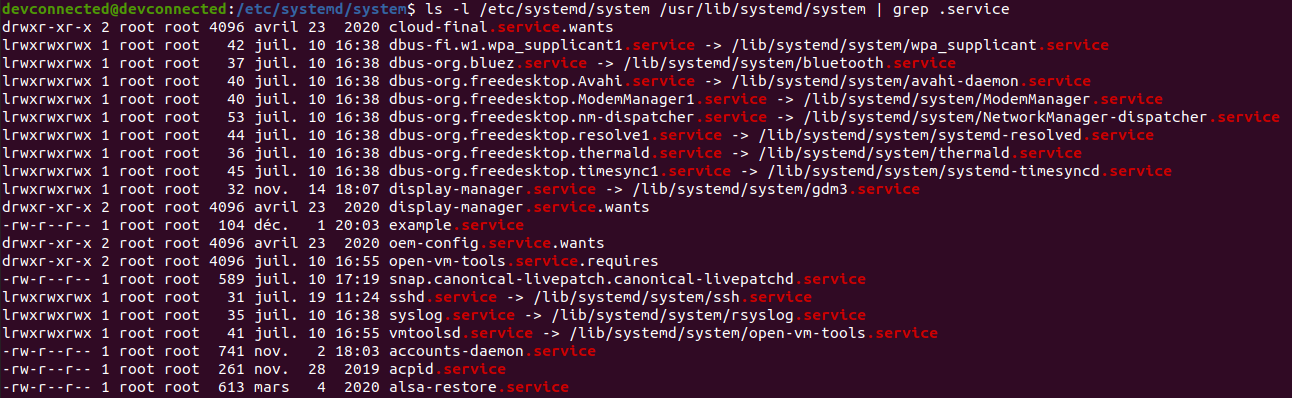
Alternatively, you can use the “grep” command in order to search for specific paths on your system that may contain service files.
$ ls -l /etc/systemd/system /usr/lib/systemd/service | egrep .service$
Congratulations, you learnt how you can list services if your system is using systemd!
List Services using service
The easiest way to list services on Linux, when you are on a
SystemV init system, is to use the “service” command followed by
“–status-all” option. This way, you will be presented with a complete
list of services on your system.
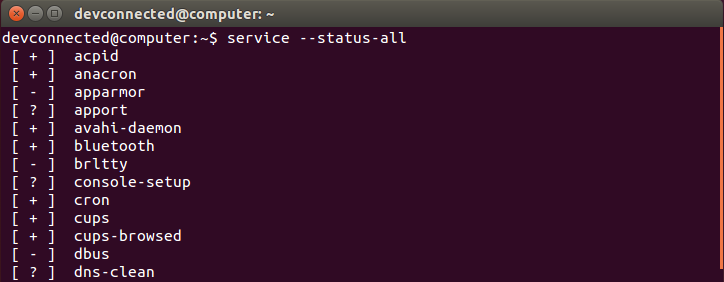
$ service --status-all
As you can see, each service is listed preceded by symbols under brackets. Those symbols mean :
+ : means that the service is running;
– : means that the service is not running at all;
? : means that Ubuntu was not able to tell if the service is running or not.
So why are some services to tell if they are running or not, and some are not able to?
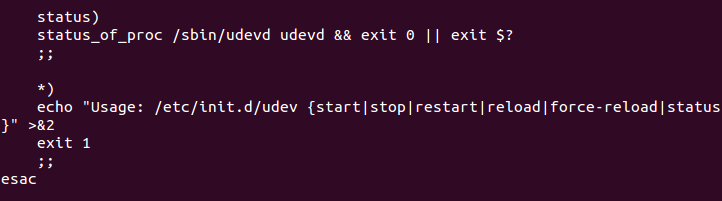
It all comes down to the implementation of the init script. In some scripts, such as the udev script for example, you are able to see that the “status” command is implemented.
This is not the case for the “dns-clean” script for example which is the reason why you have a question mark when you query this service.
List SysVinit Services in Folders
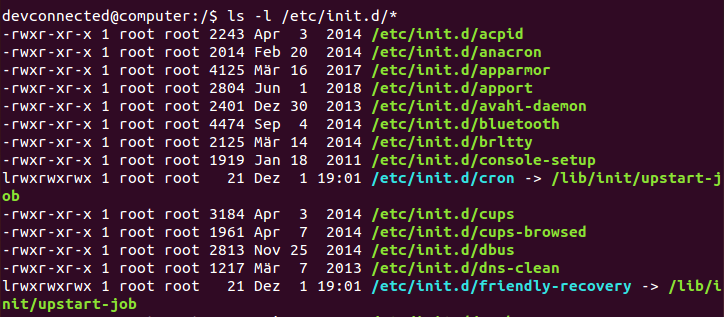
Another way of listing the current list of services is to use
the “ls” command on the folders containing all scripts on a Linux
system, namely “/etc/init.d”.
$ ls -l /etc/init.d/*
Conclusion
In this tutorial, you learnt how you can easily list services on a Linux system whether you are using systemd or SysVinit ones.
If you are interested in creating your own services, we recommend
that you have a look at the following resources. They might be really
useful in order to correctly achieve that.
Cómo comprobar el nivel de batería de los dispositivos Bluetooth conectados al iPhone Los accesorios de terceros como auriculares, audífonos inalámbricos, parlantes Bluetooth casi se han convertido en una extensión del iPhone y el iPad de hoy en día. Dado que estos dispositivos funcionan con sus propias baterías, es útil saber cuánto jugo queda en estos dispositivos. La práctica le ayuda a evitar situaciones embarazosas, como quedarse sin energía durante una videollamada en curso o en medio de una sesión de escucha de música. Afortunadamente, hay varias formas de verificar el nivel de batería de los dispositivos Bluetooth conectados a su iPhone.
Puede cargar auriculares inalámbricos simplemente colocándolos en su estuche de transporte, pero este no es el caso con auriculares, parlantes inalámbricos y otros dispositivos Bluetooth. Por lo tanto, siempre es recomendable verificar el nivel de batería de dichos dispositivos antes de la próxima reunión de Zoom. Con iOS 14, es más fácil que nunca echar un vistazo a la duración restante de la batería en estos dispositivos.
Hay un par de formas de verificar la duración de la batería del dispositivo Bluetooth conectado en el iPhone. Los usuarios pueden echar un vistazo al Centro de control o usar los widgets de iOS 14 para obtener más detalles. Siga los pasos a continuación para verificar la duración de la batería del dispositivo Bluetooth desde el Centro de control.
Primero, debe asegurarse de que el dispositivo Bluetooth esté conectado al iPhone.Paso 1: abre el Centro de control
Desbloquee su iPhone y deslice hacia abajo desde la esquina superior derecha para abrir el Centro de control.Paso 2: pico en la esquina superior derecha
Verá el indicador de nivel de batería del dispositivo conectado en la esquina superior derecha. Desafortunadamente, no muestra el porcentaje de batería en cifras. Tendrá que confiar en el icono de la batería para hacer una estimación.
Si desea ver el porcentaje exacto de duración de la batería del dispositivo Bluetooth conectado, use el widget Batería en el menú Hoy de iOS.
Con iOS 8, Apple ha agregado soporte para widgets en el iPhone. La compañía está llevando la experiencia de los widgets en el iPhone al siguiente nivel con la actualización de iOS 14. El sistema operativo iOS 14 le permite agregar widgets a la pantalla de inicio, cambiar el tamaño de los widgets y también ofrece la posibilidad de crear una pila de widgets. en el menú y la pantalla de inicio de iOS Today.
Con el widget de batería en iOS 14, puede verificar el nivel de batería de todos los dispositivos conectados en el iPhone. Siga los pasos a continuación para agregar un widget de batería a la vista Hoy y a la pantalla de inicio.Paso 1: Cambie a la vista Hoy de iOS
Desbloquee su iPhone y deslícese hacia la izquierda en la pantalla de inicio para ir a la pantalla Vista Hoy de iOS.Paso 2: abre el menú Agregar widget
Toque prolongadamente cualquier widget y el iPhone entrará en modo jiggle. Toque el icono + en la esquina superior izquierda y abrirá el menú de widgets con las aplicaciones instaladas compatibles.
Paso 3: agregue el widget de batería
Desplácese hacia abajo hasta la opción Batería y tóquela. El sistema le pedirá que elija entre los tres tamaños de widget de batería: Pequeño, Mediano y Grande. En general, estará bien con el widget de batería de tamaño mediano. Para seleccionar Agregar widget En el fondo.
Verá el porcentaje de batería del dispositivo Bluetooth conectado en el widget con un icono de dispositivo. Si usa el widget de batería grande, también puede ver el nombre del dispositivo Bluetooth conectado.
Con iOS 14, no es necesario confiar en la pantalla Vista de hoy para ver los widgets de la aplicación. También puede agregar estos widgets en la pantalla de inicio. Siga los pasos a continuación para agregar un widget de batería a su pantalla de inicio.Paso 1: usa arrastrar y soltar
Vaya a la pantalla Vista Hoy de iOS y mantenga pulsado el widget de Batería. El sistema entrará en modo jiggle. Simplemente arrastre y suelte el widget de la batería en la pantalla de inicio. Verá iconos de aplicaciones que dejan espacio para el widget de batería agregado.Paso 2: abre el menú de widgets
Los usuarios también pueden agregar el widget de la batería desde la pantalla de inicio del iPhone. Mantenga pulsado el icono de cualquier aplicación y vaya al modo de movimiento de iOS. Toque el icono + en la esquina superior izquierda y abrirá el menú de widgets con las aplicaciones instaladas compatibles.
Paso 3: coloque los widgets en la pantalla de inicio
Desplácese hacia abajo hasta la opción Batería y tóquela. Seleccione el tamaño del widget y agréguelo a la pantalla de inicio.
Ahora puede verificar el nivel de batería del dispositivo Bluetooth conectado en el iPhone directamente desde la pantalla de inicio. ¿No es fantástico?Deja la ansiedad de la batería
Es bueno ver a Apple mejorar en el frente de los widgets. Me gustan los widgets de batería rediseñados que ofrecen más información de un vistazo. Y poder ponerlos en la pantalla de inicio es la guinda del pastel. La próxima vez que desee comprobar el nivel de batería del dispositivo Bluetooth, simplemente conéctelo al iPhone y observe el porcentaje de batería desde la pantalla de inicio.
El widget de batería rediseñado en iOS 14 es solo una de las muchas características que Apple anunció en el evento solo en línea de la WWDC. No olvide revisar las más de 100 nuevas funciones de iOS 14 para iPhone que hemos descubierto hasta ahora. ¿Ya instaló iOS 14 beta en su iPhone? ¿Cómo ha sido tu experiencia hasta ahora?